
 simpcity
 Windows 11 offers powerful features, but over time, users may face lag, slow startups, and reduced performance. An optimization tool can clean up PC problems and keep your system running smoothly. This article explores how a powerful PC cleaner Advanced SystemCare 19 can help fix system problems and improve productivity.
Reasons Why Your Windows 11 Became So Slow
If your Windows 11 PC is slow to start or feels sluggish, several hidden factors may be affecting its performance. Recognizing these reasons makes it easier to resolve performance problems. Let’s explore the most common causes of Windows 11 slowdown.
- Too many programs start automatically and use system memory, slowing down boot time.
- Junk files, cache data, temporary logs, and crash reports accumulate, slowing disk performance.
- Corrupted or outdated registry entries create unnecessary system processing delays.
- Old hardware, low RAM, or slow storage devices can reduce startup speed.
- Unnecessary background services also use CPU and memory resources.
How to Fix Windows 11 Lag Using Advanced SystemCare 19

Now you know the reasons why your Windows 11 system is slowing down or lagging during daily tasks. The right software helps you clean up PC and restore fast performance. You can rely on Advanced SystemCare 19 to reduce Windows 11 lag.
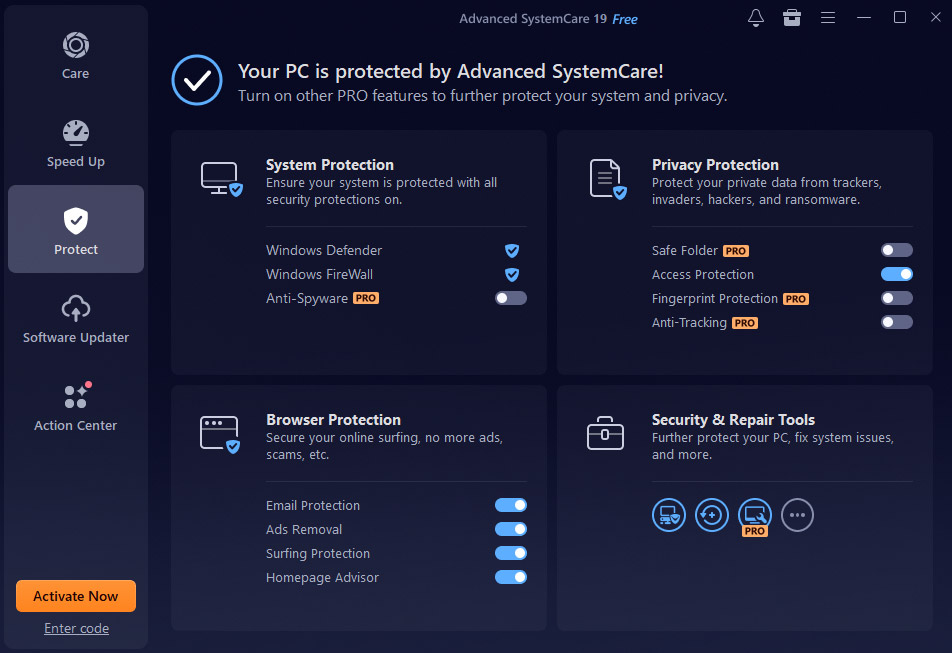
Advanced SystemCare 19 is an all-in-one PC optimization tool by IObit designed to fix Windows 11 lag and improve overall system speed. This smart PC cleaner maintains system speed by removing junk files and cache data. AI-powered scanning detects system errors and performance slowdowns based on your usage habits. It also assists in managing startup items and background tasks.
With one-click optimization, you can easily clean up pc issues and enjoy smoother, faster performance.
Step-by-Step Guide
With a clear idea of why Advanced SystemCare 19 stands out, let’s explore how it works. Follow these steps to resolve Windows 11 lag and boost performance with this tool.
Step 1. Open the Software and Perform a Full Scan
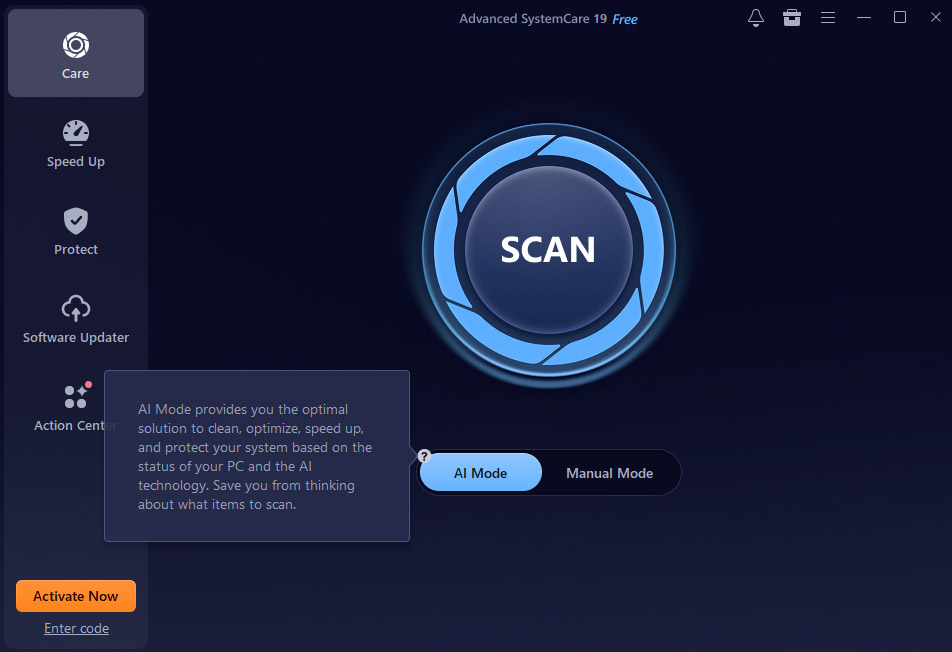
Open this PC cleaner, then run AI Mode for smart auto scanning or 1-Click Health Checker for a complete system check.
Click Scan to find junk files, registry errors, startup problems, privacy traces, and system vulnerabilities. Review the results and remove unnecessary items to enhance overall performance.
Step 2. Repair and Clean Up Detected System Issues
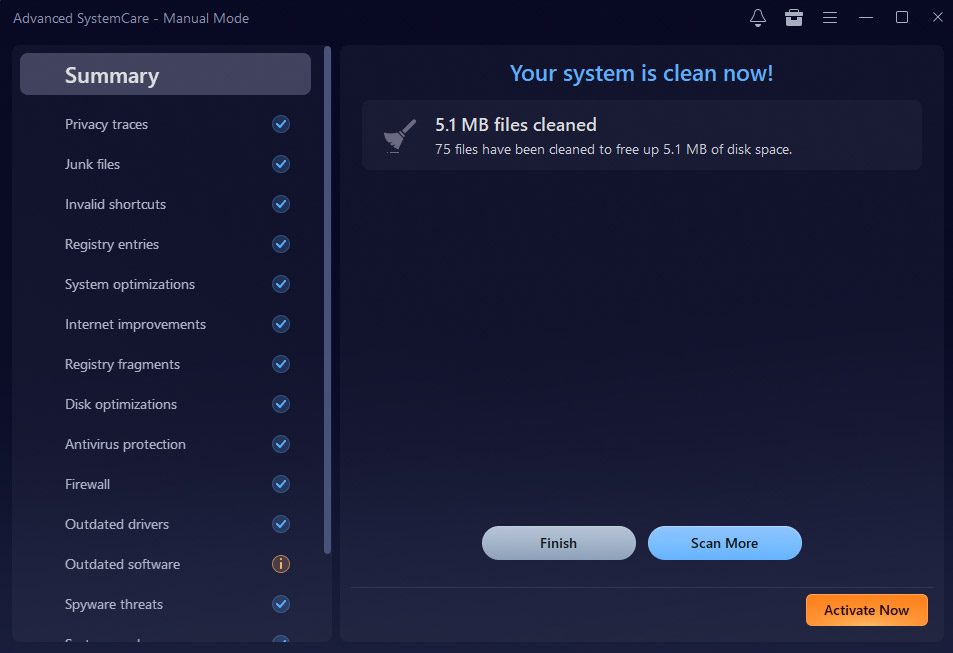
When scanning finishes, examine the detected issues and avoid selecting important system files.
Then click Clean or Fix to remove junk files, temporary data, and registry errors to boost Windows 11 speed and performance.
Step 3. Enhance Startup Performance Using Startup Optimizer
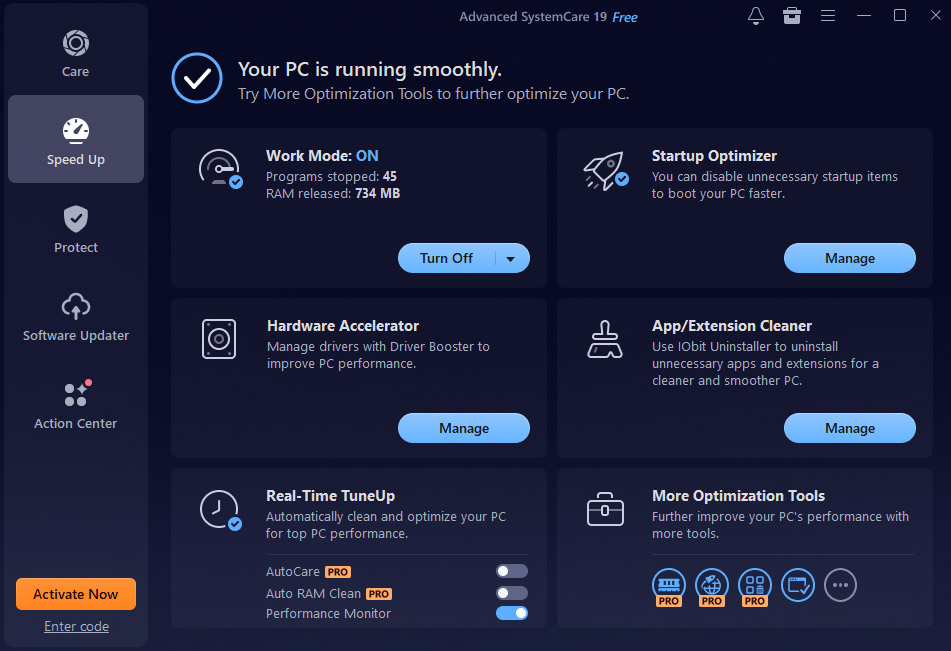
Go to the Speed Up tab and open Startup Optimizer. Turn off or postpone non-essential startup apps, browser add-ons, and background services, but keep security tools enabled.
This helps shorten startup time and boost boot performance by up to 60%.
Step 4. Optimize ASC Settings for Better Boot Performance (Optional)
To lower background usage, open Settings, select General Settings, and turn off Load Advanced SystemCare at Windows startup.
This prevents the tool from automatically launching and helps improve boot speed.
Step 5. Activate Turbo Boost to Improve System Speed After Startup
Use Turbo Boost under the Speed Up section to stop unnecessary background processes.
Turn on Work, Game, or Economy mode to ensure stable performance once Windows loads.
Why I Chose Advanced SystemCare 19
Selecting the best optimization tool can improve Windows 11 responsiveness and performance. Several tests showed Advanced SystemCare 19 provides powerful performance with simple operation. Here’s why this tool became the preferred choice.
- Startup Optimizer
- Displays all programs, services, and scheduled tasks running at startup.
- Shows impact levels and allows you to disable or delay non-essential items.
- Helps reduce long boot times by controlling startup load.
- 1-Click Health Checker / AI Scan
- Detects junk files, registry errors, privacy traces, startup problems, and system weaknesses.
- Cleans, repairs, and optimizes your PC with a single click.
- Deep Clean Tools
- Provides junk cleaning, registry optimization, shortcut repair, and privacy safeguards.
- Reduces unnecessary system load during startup and daily use.
- Turbo Boost
- Temporarily stops unnecessary services to maximize performance efficiency.
- Especially useful for gaming and heavy software tasks.
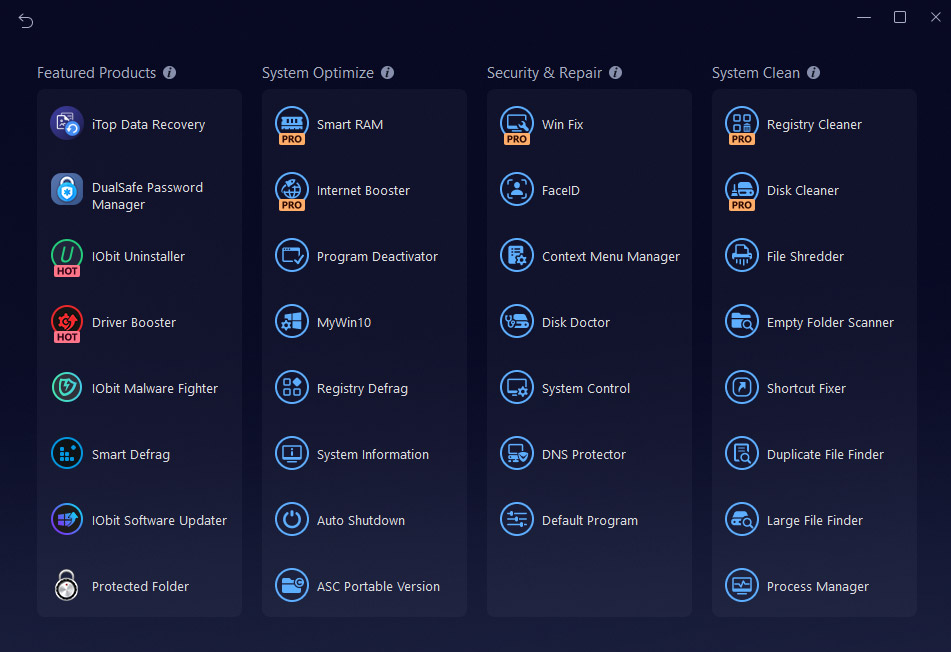
- System Optimization Tools
- Helps enhance disk usage, network connectivity, and hardware performance.
- Keeps your system running smoothly after startup.
- Lightweight Operation
- Improves performance without consuming heavy system resources.
- Enhanced System Stability
- Minimizes background processes and fixes system issues.
- Reduces the risk of crashes, system freezes, and slow performance.
- Improved Overall Performance
- Enables rapid app loading and stronger multitasking capability.
- Reduces lag even on older hardware.
- Built-In Privacy and Security
- Deletes browsing traces and clears online history.
- Maintains strong protection for private information.
- Works for Both New and Older PCs
- Optimizes performance according to your system’s requirements.
- Detects performance slowdowns and makes focused improvements.
- Significant Speed Improvements
- Several users report startup performance improving by up to 200% after optimization.
Conclusion
In short, the IObit Advanced SystemCare 19 improves performance by reducing lag. By following a few simple steps, you can remove junk files, control startup programs, and improve system speed. Regular PC maintenance helps avoid future slowdowns and keeps your system running smoothly. Put these methods into action for quicker startup, reliable stability, and efficient multitasking. Start optimizing your PC today and experience better performance.
FAQs
Q1. Is it safe to disable startup programs? Will it break anything?
Advanced SystemCare 19 allows safe startup management by providing safety ratings for listed programs. Do not disable essential security software like antivirus or firewall programs, or critical hardware drivers. The tool clearly marks items as Safe or Low Risk, helping you make better decisions. When in doubt, look up the program online before turning it off to prevent system problems.
Q2. How often should I run Advanced SystemCare to keep my PC optimized?
Maintain stable performance with a weekly 1-Click Health Check in Advanced SystemCare. Checking the Startup Optimizer every few weeks helps maintain optimal performance. This helps ensure new programs do not slow down boot time or system performance. Regular care helps maintain long-term speed and smooth performance.
For the latest updates and information, keep checking SimpCity.